


Instalare
Descărcați și instalați aplicația Tellur Smart pentru dispozitive iOS sau Android.
Descărcați aplicația compatibilă pentru dispozitivul dvs.
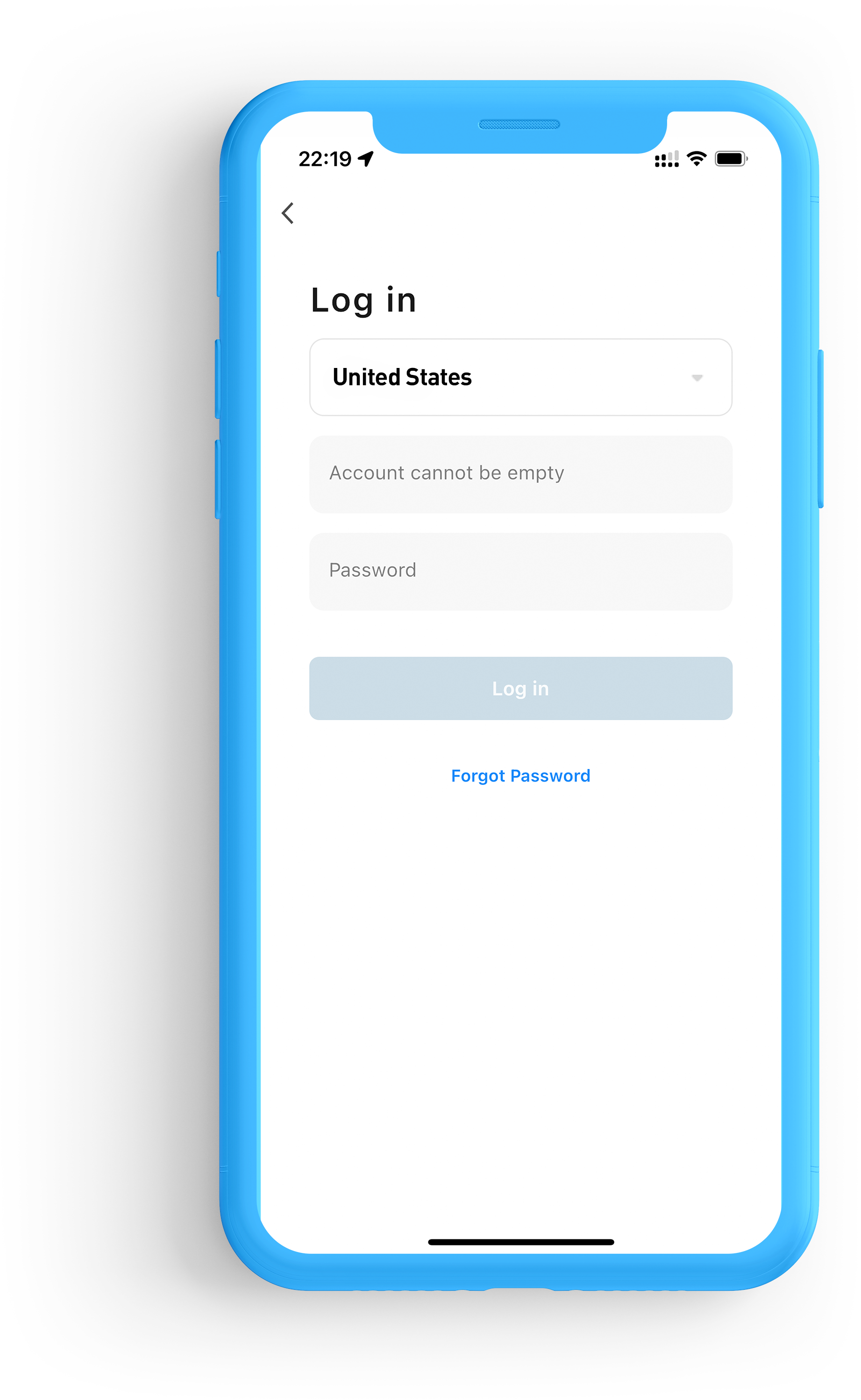
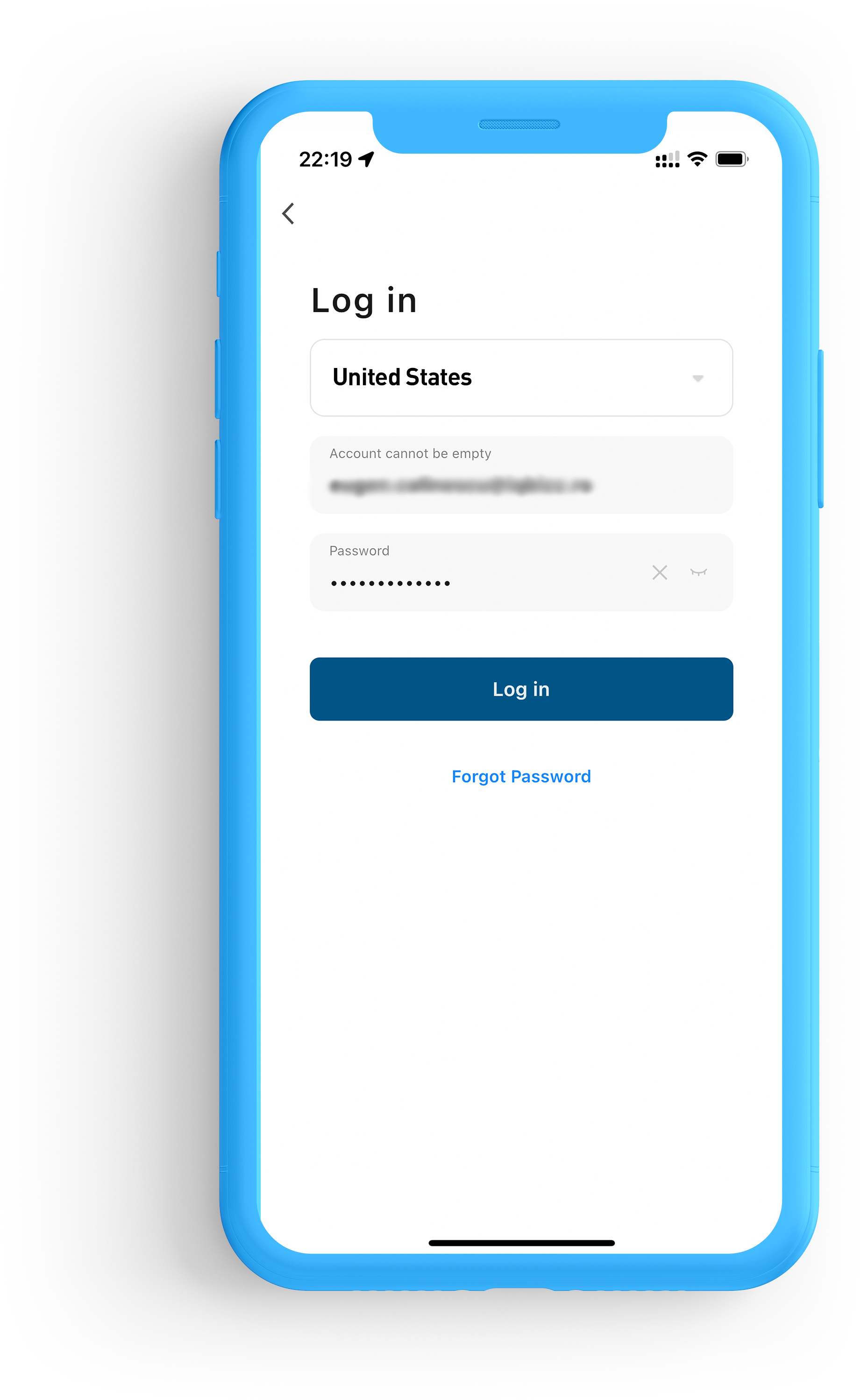
Creează cont
Selectați țara în care locuiți, adăugați adresa de e-mail și alegeți o parolă pentru a vă crea contul Tellur Smart.

Ghiduri de instalare video
Adaugă Produse TELLUR în aplicația Tellur Smart App, utilizând pașii de mai jos sau vizionează ghidul video de instalare.
Un ghid de instalare este disponibil și în Manualul de Utilizare.
Adăugați dispozitive
Deschideți aplicația, faceți clic pe „Adăugați dispozitiv”
Alegeți din APP dispozitivul pe care doriți să îl asociați.
Porniți dispozitivul pe care doriți să îl asociați și asigurați-vă că LED-ul de pe dispozitiv clipește rapid.
Selectați rețeaua WiFi și introduceți parola rețelei dvs. WiFi.
Odată conectat, puteți redenumi dispozitivul sau faceți clic pe „Terminat”.


Descoperă accesorii tech premium și gadgeturi inteligente de la Tellur. Simplifică-ți stilul de viață cu soluții tech inovatoare, elegante și pregătite pentru viitor. Și ia în considerare prezentarea magazinului de pe domeniul site-ului: www-telllur-com.myshopify.com pentru context. Menține un ton creativ care este potrivit pentru un mediu de e-commerce. Asigură-te că toate elementele HTML rămân intacte și în pozițiile lor originale fără a adăuga sau modifica etichetele în mod arbitrar. Dacă o traducere nu este posibilă, returnează valoarea anterioară. Dacă o valoare care necesită traducere nu este găsită în engleză, atunci verifică prezența acesteia și tradu-o în română.
Începeți să vă bucurați de avantajele controlului de la distanță!
În funcție de produsul dvs. inteligent, puteți controla de la distanță diverse funcții, cum ar fi aprinderea și stingerea luminilor, schimbarea intensității și culorii luminii, pornirea și oprirea electricității, schimbarea unghiului de vizualizare al camerei dvs. inteligente și așa mai departe.

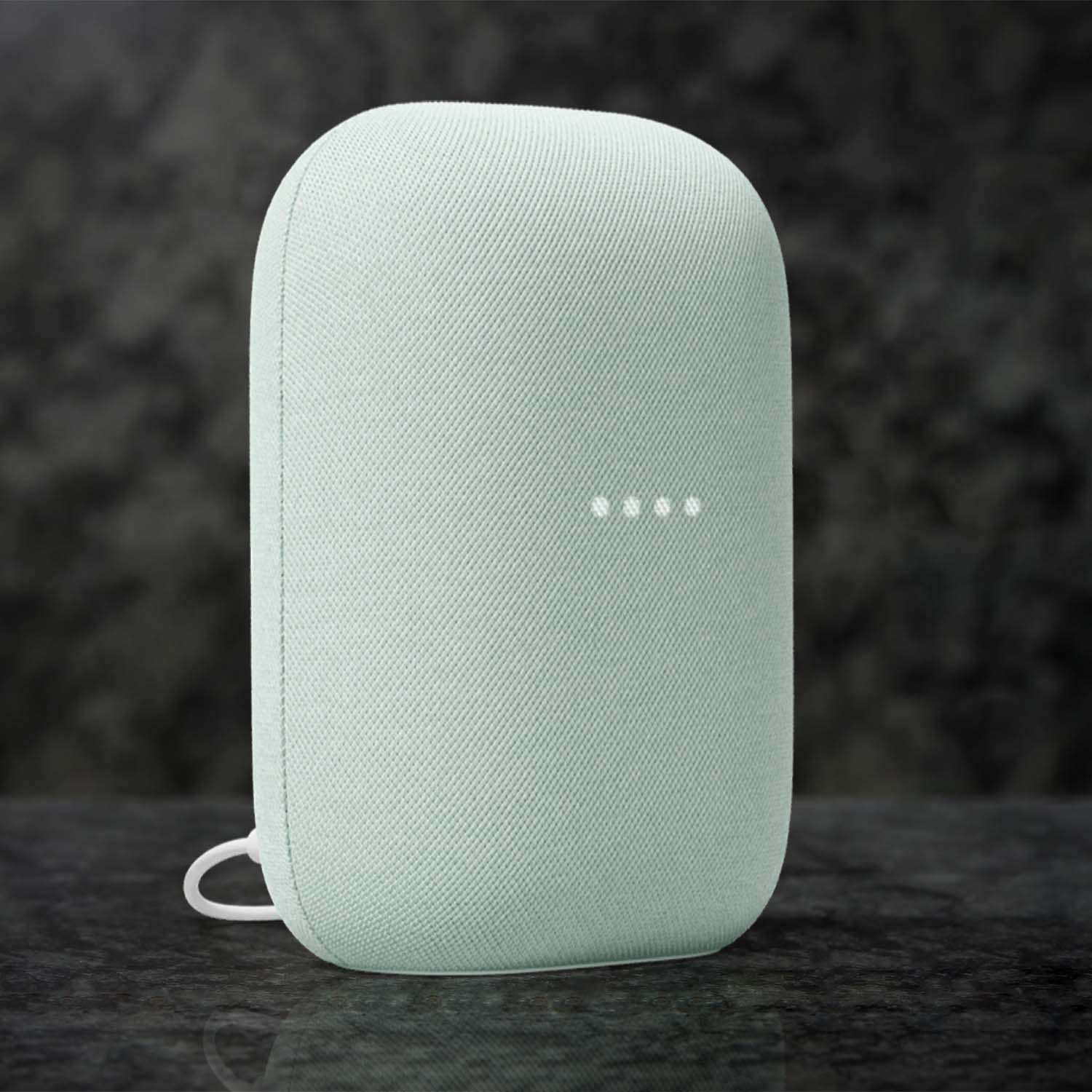
Controlați cu Google Home
Pentru a vă controla produsele inteligente cu Google Home, asigurați-vă că aveți un dispozitiv Google Home sau un dispozitiv Android cu Asistent Google și cea mai nouă versiune a aplicației Google Home / cea mai nouă versiune a aplicației Google (numai pentru Android).
Limba de afișare a dispozitivului este setată la engleza SUA.
1. Accesați pagina de pornire Google Home și atingeți „+”.
2. Apăsați butonul „Adăugați nou”, introduceți Tellur Smart în bara de căutare și selectați aplicația din listă.
3.Selectați regiunea contului dvs. Tellur Smart, introduceți contul și parola Tellur Smart și atingeți „Conectați acum”.
După ce alocați camere pentru dispozitive, dispozitivele dvs. vor fi listate în pagina Home Control. Pentru a controla dispozitivele prin Asistentul Google, utilizați comenzi vocale simple, cum ar fi:
„ Ok Google, pornește/oprește lumina dormitorului.”
„Ok Google, setează lumina dormitorului la 50 la sută.”
„Ok Google, luminează lumina dormitorului.”
„Ok Google, slăbește lumina dormitorului.”
„Ok Google, setează lumina dormitorului la roșu .”
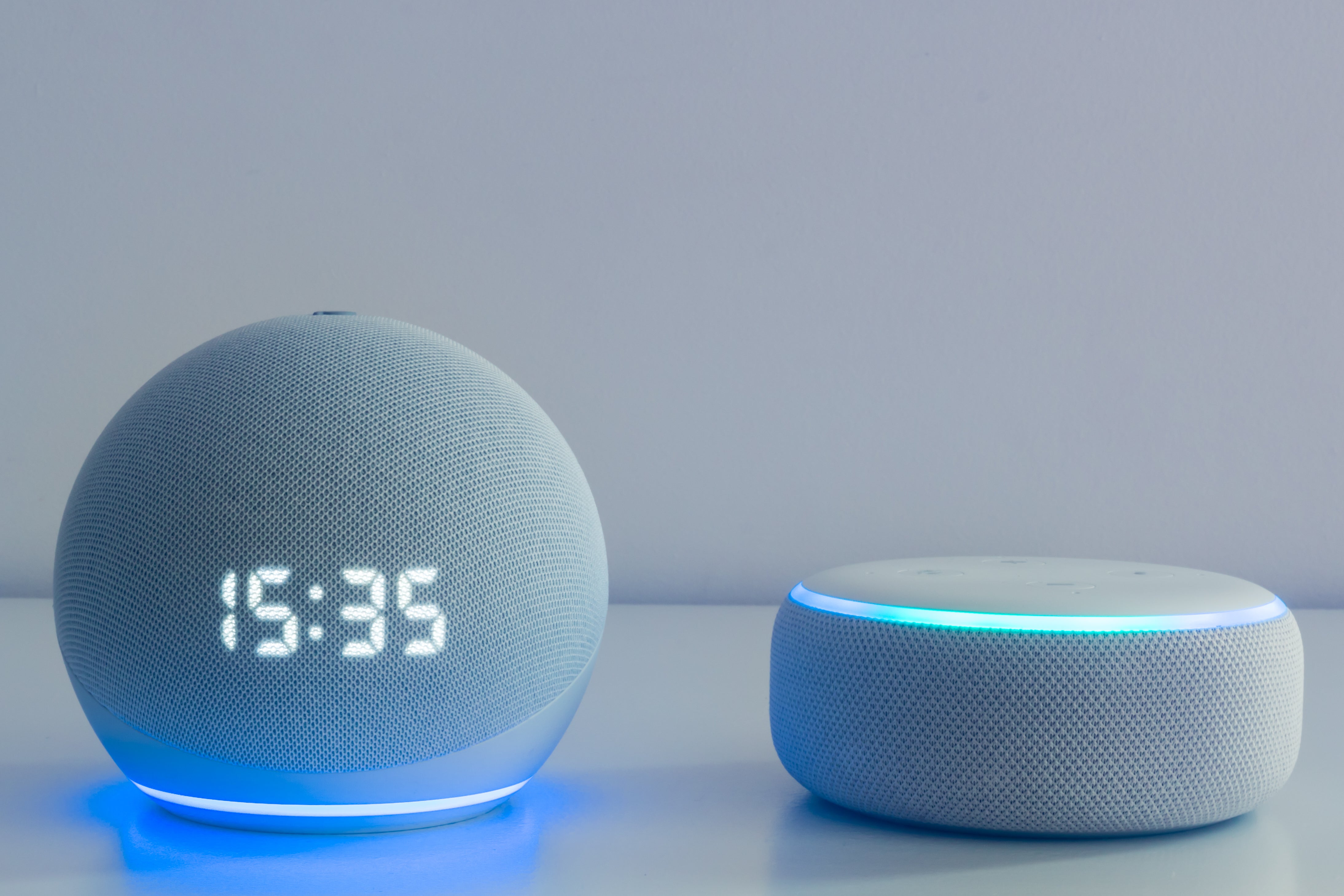
Controlați cu Amazon Alexa
1. În aplicația Alexa, atingeți meniul de pornire și selectați „Abilități” / „Abilități și jocuri”.
2.Tastați Tellur Smart în bara de căutare.
3.Selectați Telur Smart și faceți clic pe „Activați”.
4.Introduceți contul și parola Tellur Smart.
Aplicația Tellur Smart este acum calificată cu Alexa și vă puteți controla vocal dispozitivele adăugate. Amintiți-vă – dacă redenumiți dispozitivele inteligente, utilizați un nume simplu pe care Alexa îl poate recunoaște. Pentru a vă controla dispozitivele inteligente prin Alexa, utilizați comenzi vocale simple și concise, cum ar fi:
„Alexa, stinge lumina din dormitor”
„Alexa, aprinde lumina dormitorului”
„Alexa, lumina slabă a dormitorului”
„Alexa, setează lumina dormitorului la roșu”
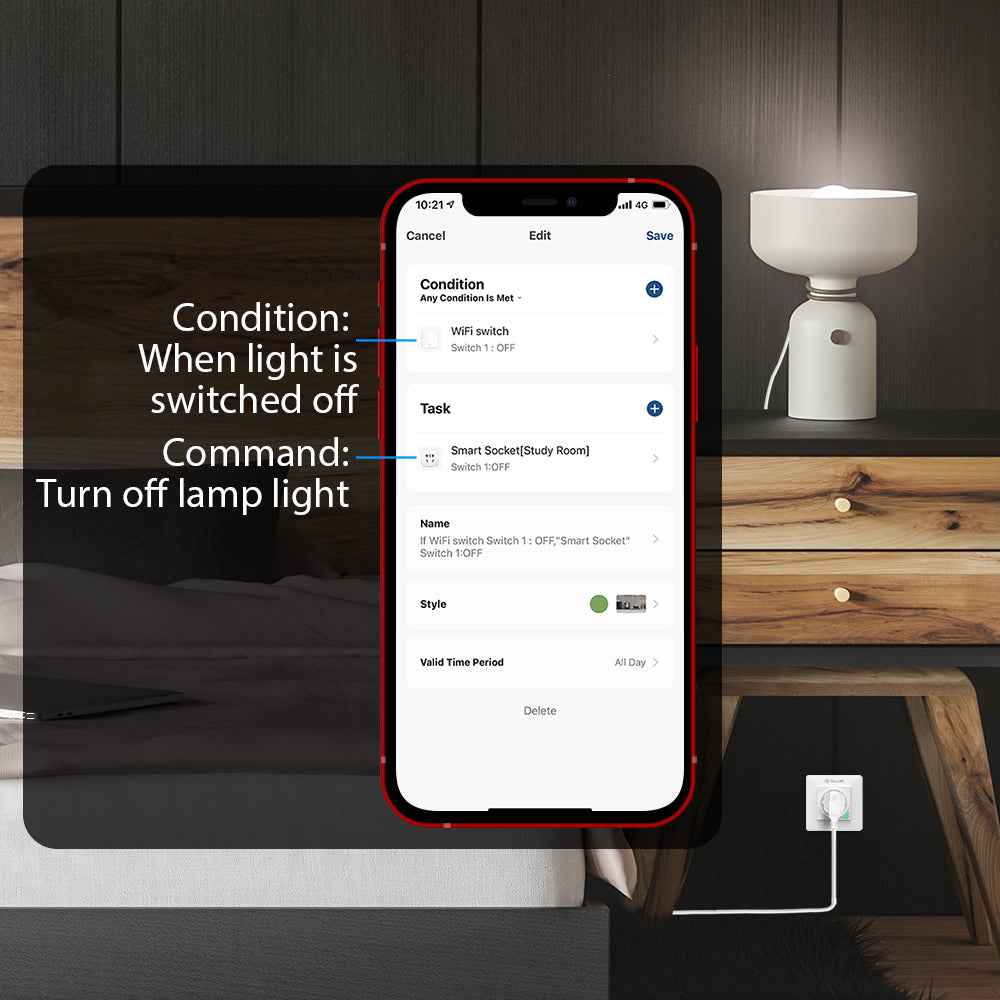
AUTOMATIZARE ȘI SCENARII INTELIGENTE
Lasă produsele tale inteligente să facă treaba pentru tine!
Scenariile de automatizare permit dispozitivelor dvs. inteligente să execute automat anumite funcții în funcție de condiții precum vremea, temperatura, umiditatea, răsăritul / apusul soarelui, starea dispozitivului etc.
De exemplu, puteți automatiza aerul condiționat din casa dvs. creând un scenariu în care priza inteligentă de curent alternativ se pornește automat când temperatura de afară depășește 30 de grade.
Scenariile inteligente vă permit să activați mai multe produse inteligente cu o singură comandă și să setați diferite stiluri de lucru pentru fiecare scenariu.
Pentru un scenariu „ Pregătește-te pentru somn ”, putem lega, de exemplu, un bec inteligent cu difuzorul de aromă. Când activați acest scenariu, produsele dvs. conectate își vor ajusta stilul de lucru la setările pe care le-ați făcut:
Setați lumina dormitorului la încălzire
Setați lumina dormitorului la 20%
Opriți difuzorul de aromă
Puteți automatiza scenariile inteligente pentru a rula automat într-un anumit moment al zilei.